Dashboards and Tools
Installing xbPirate
Install xbPirate and place its files in the correct location for your console.
Installing the App
- Start by plugging your flash drive into your computer.
- Download xbPirate, make sure you have a stealth server set up, and make sure you connect to Xbox Live.
- Make a folder on the root of your flash drive named Apps and make a folder called xbPirate and put the files inside of it
Adding the files to your Config for RGH Consoles
this part is only for RGH consoles
- Open the DashLaunch app.
- Go to plugins
- And go to plugin4
- And select xbPirate.xex as the plugin
- Press RB, go to HDD, then press X to save and reboot the console.
Adding the files to your Config for BadUpdate Consoles
- Open your launch.ini file, find the Plugins section, put the path to xbPirate.xex in plugin4, save your config, and then load BadAvatar.
plugin4 = Usb:\Apps\xbPirate\xbPirate.xex
Installing Games Via the Microsoft Store
- Boot into Aurora
if you do not use Aurora as your main dashboard or default to the Microsoft dash this is fine, just go to the Microsoft dash
- Press select
- File manager
- Flash
- And open dash.xex,
- Once in the MS dash, connect to Xbox Live.
If you aren't using xbGuard as a stealth server, xbPirate will spam notifications. It will still work, but it can be annoying. You can bypass this by either turning off notifications or renaming your stealth server file to xbGuard.xex and updating the plugin path in your launch.ini.
- On the newest update of the MS dash, Xbox removed the Marketplace. It can still be accessed, but it requires a couple of extra steps.
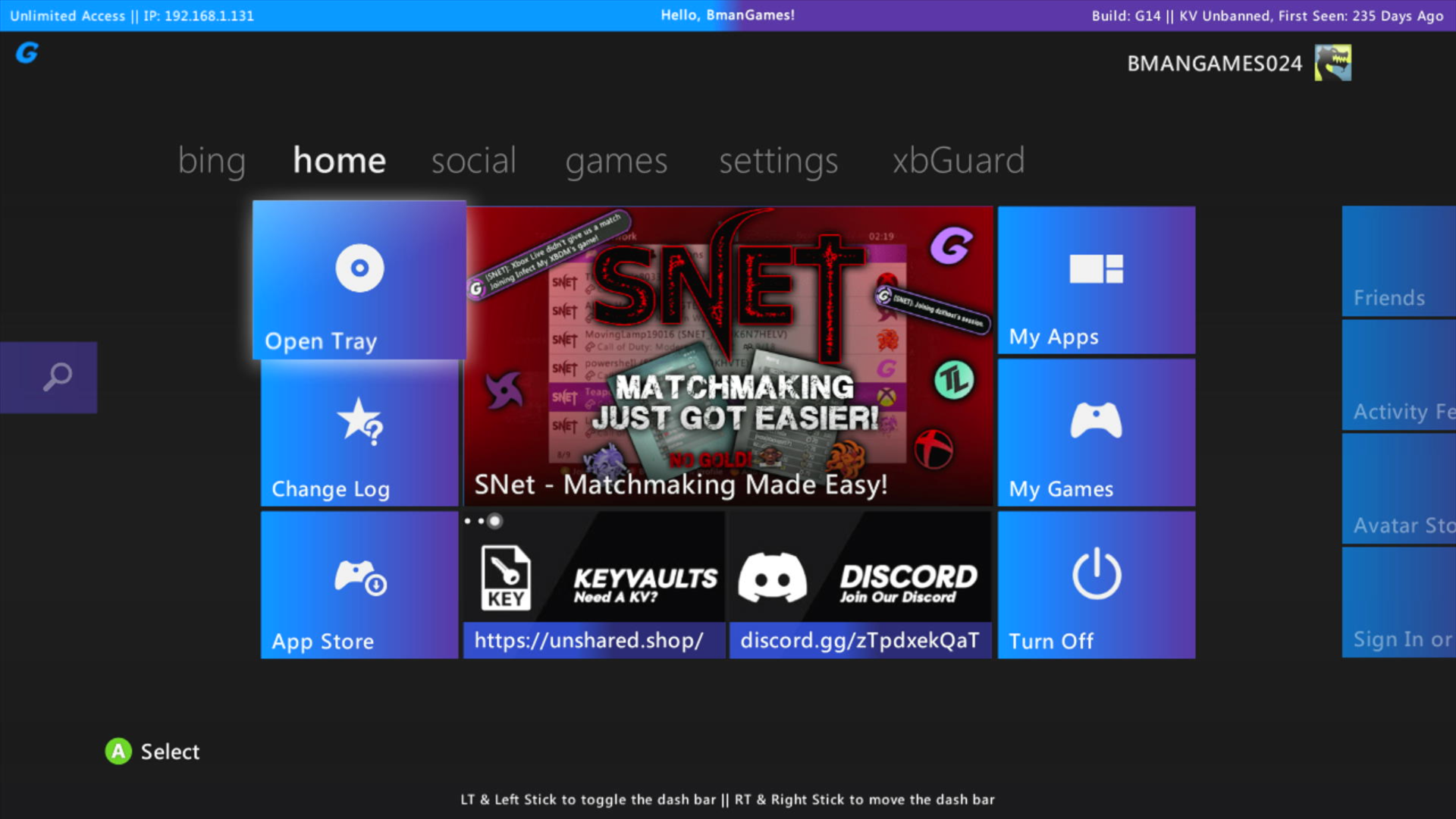
If you are using xbGuard as your main stealth, you can skip ahead to the part about finding which game you want to download. They added back a normal Store function for their stealth, so just press RB, go to Games, and click Search Games.
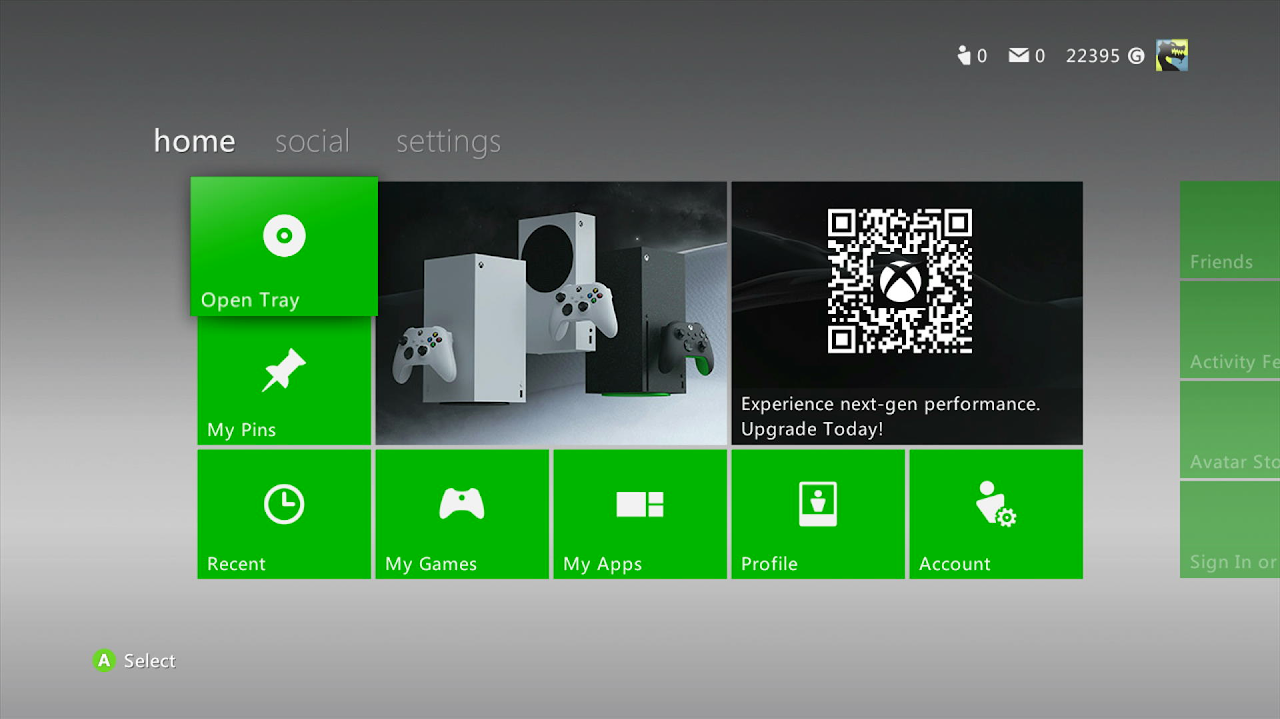
Stock dash vs. xbGuard's dash
- Go to my games
- Hover over a game and press X for details
- Press Y for search
- Search for the game you want to install, then find it in the results.
some games may have been removed
- The game will say purchase
- Click A on purchase
- A notification should pop up and say, "it's on the house mate," and your wallet on the purchase screen should show \$999,999,999.
- Click confirm purchase
- The game should start downloading. After it finishes, boot back into Aurora and you can play the game.