Networking
Connecting to the Internet without Xbox Live
Connecting to the Internet without Xbox Live
Enabling Live Block
- This part is for BadAvatar users
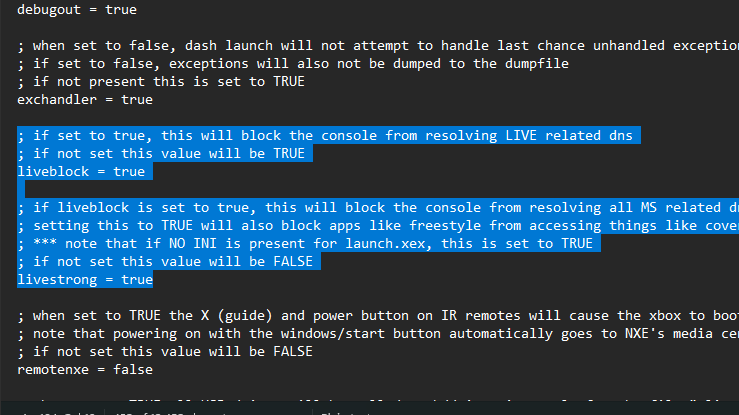
- Open your launch.ini.
- Find the line that says liveblock and make sure it is set to true.
- If you have a stealth server set up under your plugins, remove it by deleting the file path.
Enabling Live Block For RGH
this part is for RGH users only
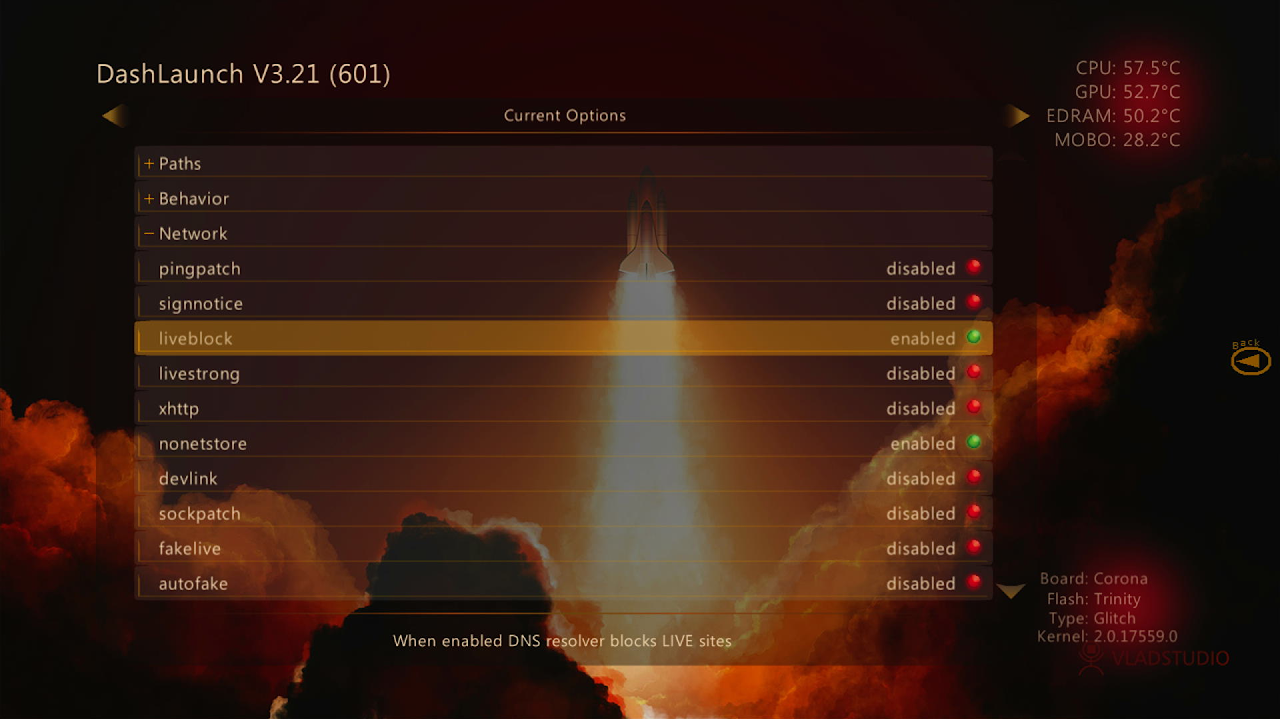
- Open Dashlaunch
- Go to network
- And make sure live block is enabled
- If you have a stealth server enabled go to plugins and press Y on the plugin to delete it
- Press RB and X on HDD to save your config if you store your files on your internal hard drive or click X on USB if you store files on your flash drive
Microsoft Dash Settings
- Now that you have live block enabled and no stealth server plugins
If you are using Aurora as your main dash, you need to get to the Microsoft dash.
Start off by pressing back
Go to file manager
Flash
And press A on dash.xex
- On the MS dash go to settings
- System
- Network settings
- If you are using Ethernet, plug in your cable, click Wired Network, and then test the Xbox Live connection.
- If you are using wireless, click Wireless Network, connect to your internet, and press Test Xbox Live Connection.
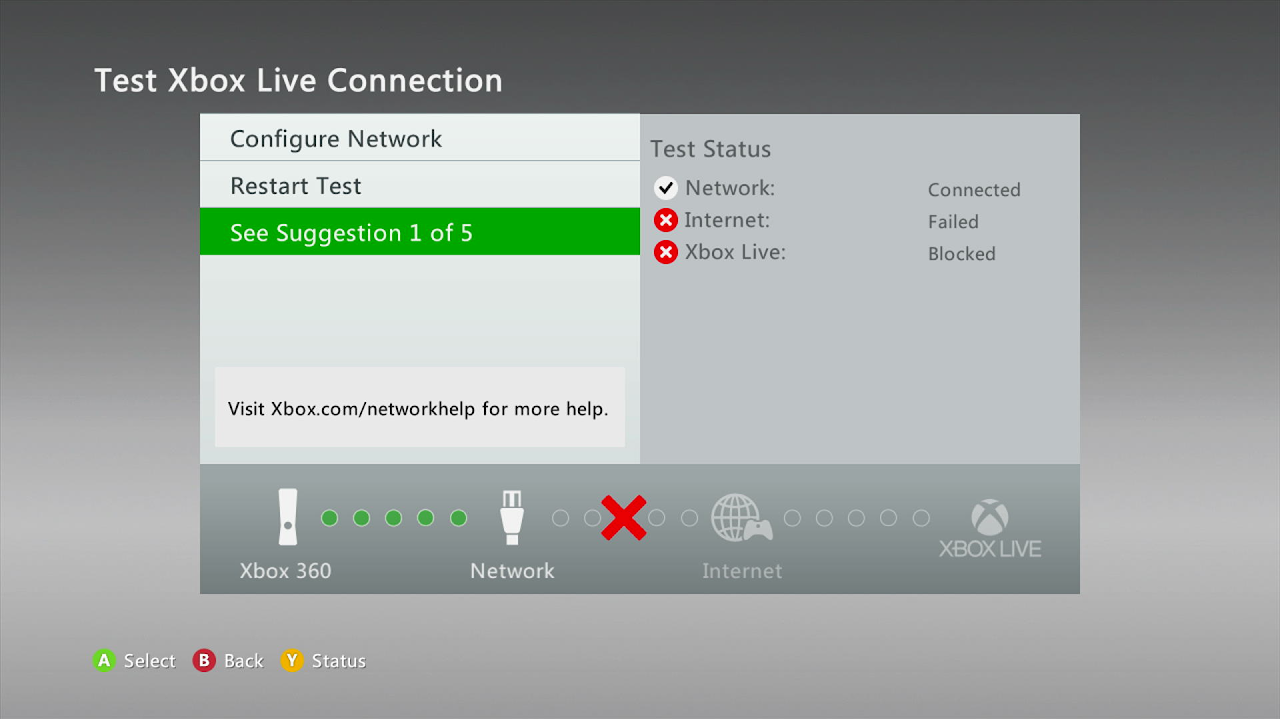
- You should see an error pop up saying test failed, there's a problem with your connection, just press cancel
- Under test status, you should see that the network is connected but Xbox Live is blocked. This is what you want.
- You are now connected to the internet with Xbox Live blocked.