Games and DLC
Installing Games For Aurora
Convert a game image, place the files correctly, and make the title appear inside Aurora.
Downloading the app
- Start by getting the game you want to add.
archive.org has everything you'll need
Converting the ISO
- Get the ISO you downloaded.
- Make sure it is not still in a zip file.
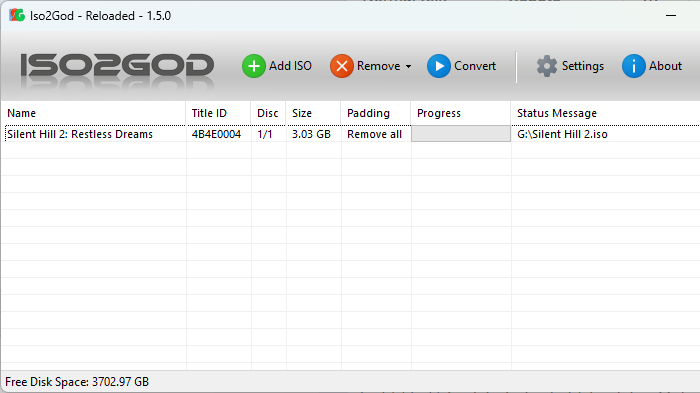
- Open ISO2GOD.
- Drag the ISO into ISO2GOD.
- It will open a screen with info on the game you are converting. Make sure everything looks correct, including the title and logo, then press Add.
- You should now see your game in the app with its title ID and size.
- Press the Convert button.
Finding the files
- Once it is finished, it should say "finished," and you should see a folder named "god" in the ISO2GOD directory.
- Find the folder with the title id
a title id should look something like 415608c3
- Connect to FTP or open your flash drive files and find the Content folder.
- Or if using BadAvatar plug in your flash drive to your computer
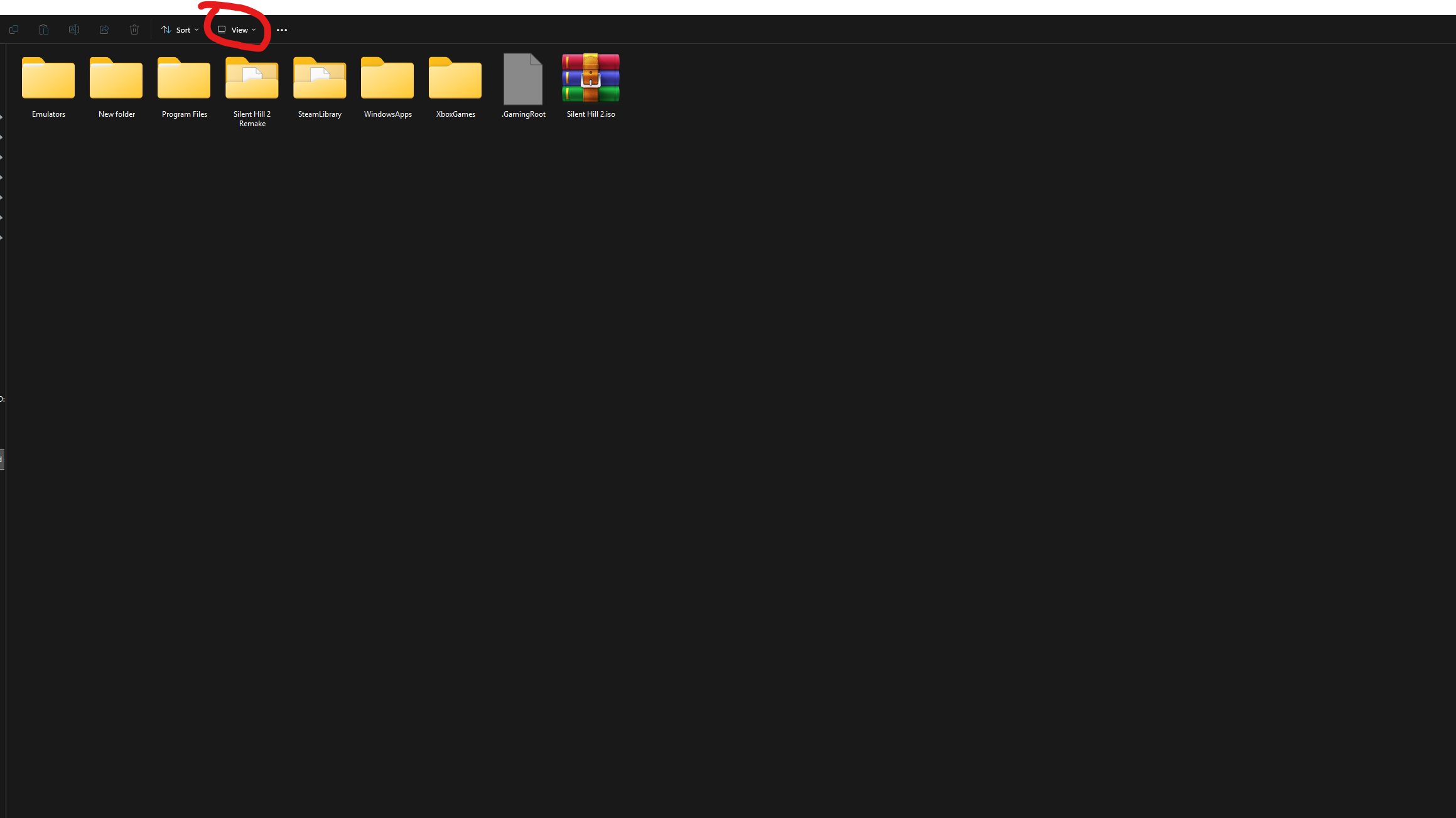
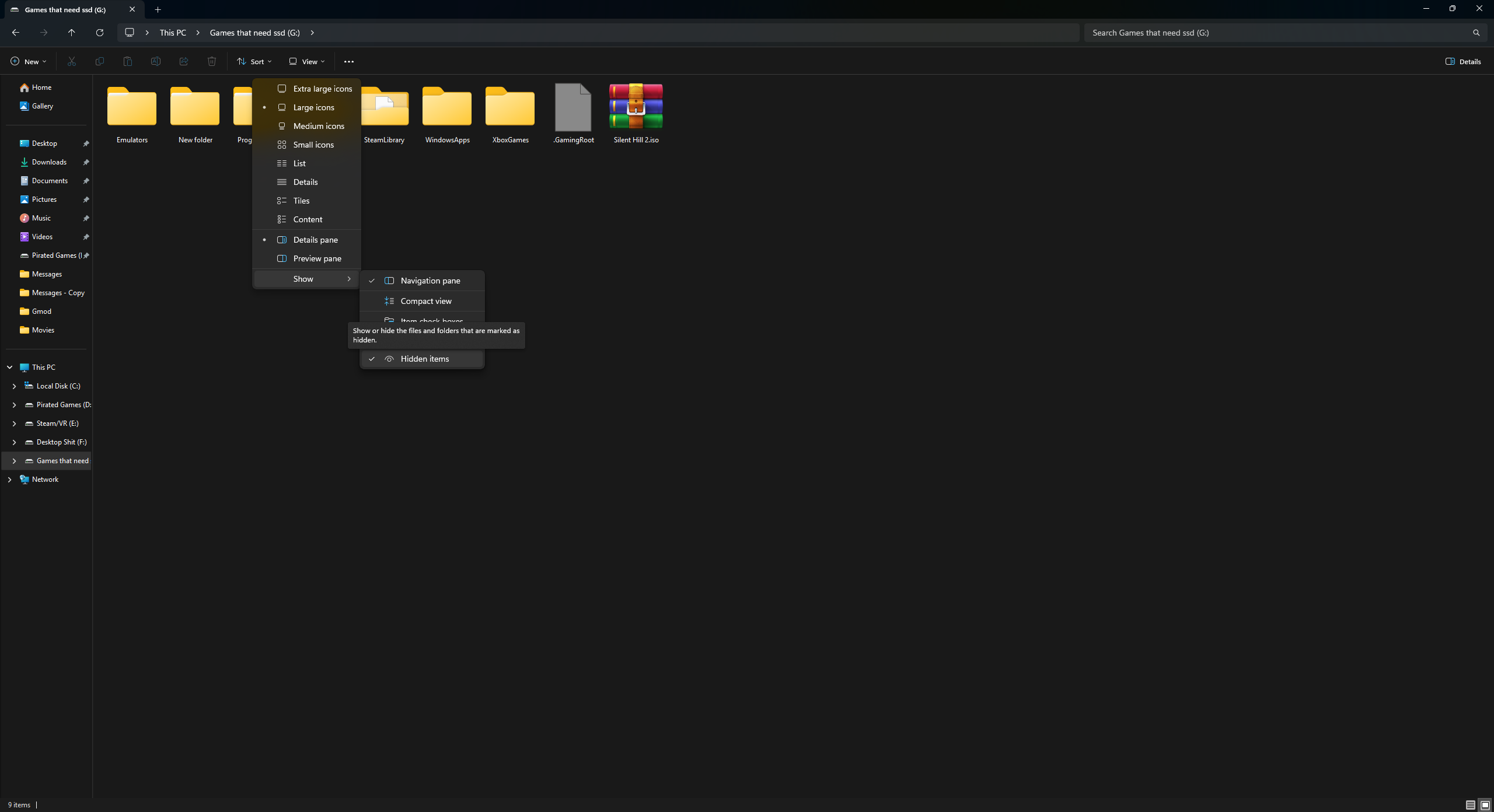
If you are using a flash drive, make sure hidden folders are visible in File Explorer by clicking View, then Show, then Hidden items.
- Open the content folder
- You should see a folder labeled 0000000000000000
- All title id apps and games go inside of here
Making your games show up in Aurora
- After your game is added to the 0's folder, open Aurora.
- Press start
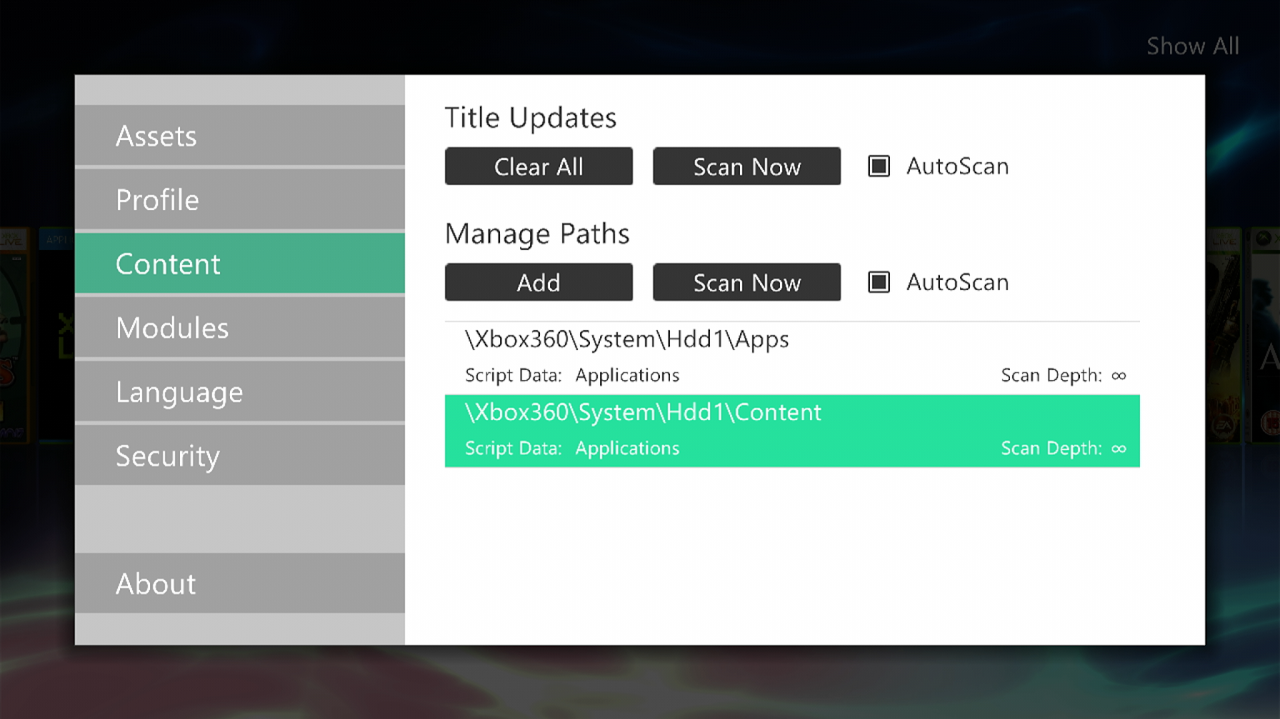
- Go to content
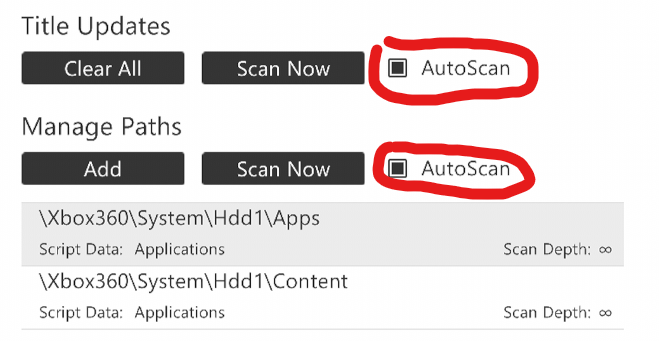
- enable auto scan for title updates and managed paths
- Then under managed paths click add
- Under select location
- Point it to the content folder
- Set scan depth to INF, and script data to applications
- Back out of the menu and press back
- And press restart
- This will restart Aurora, not the console. You should now see your games.
Making Xbox Live Arcade Games Not Demos
- For XBLA games they may be a demo and not unlocked
- To change this, plug your flash drive into your computer and open your launch.ini config.
- Find the line xblapatch and set this to true
If you are using an RGH console, open DashLaunch, find xblapatch, enable it, then press RB and X on HDD to save.
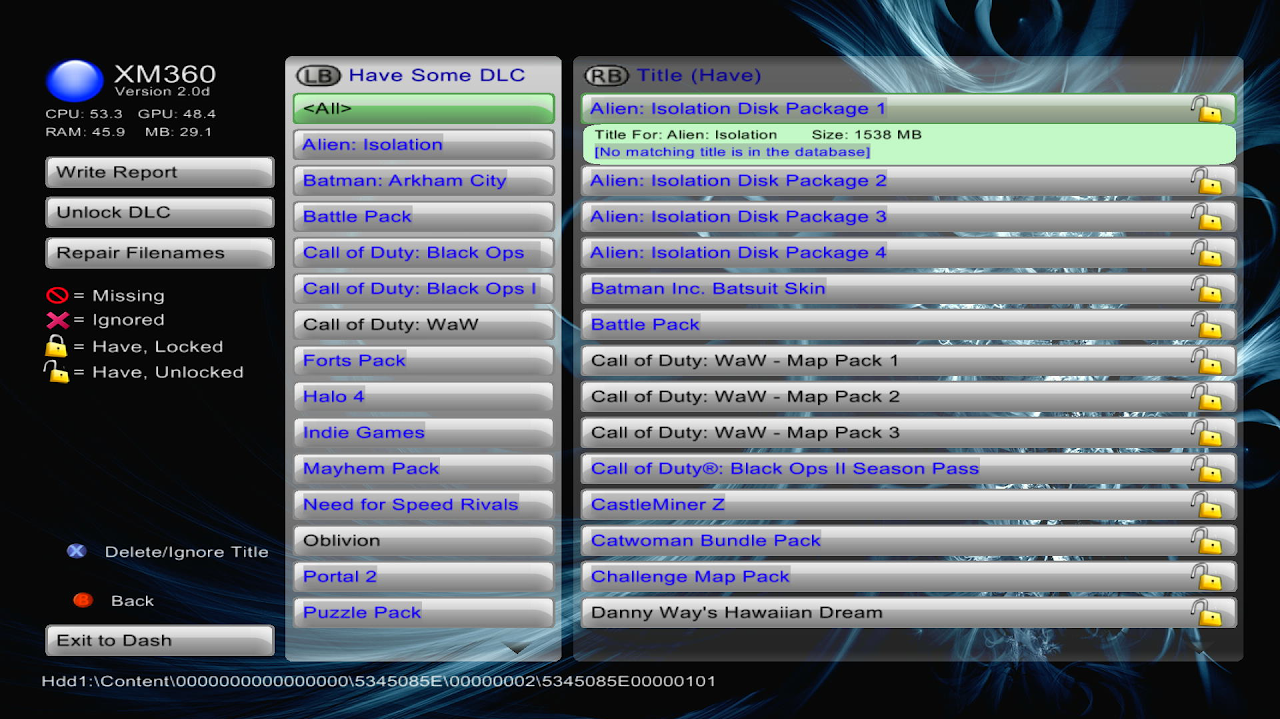
- Next we are going to download XM360
- Extract the zip
- Add it to your flash drive where you store your apps
- Or if using an RGH console connect to FTP and store the files where you store your apps
- Boot BadUpdate and then boot into Aurora.
- Press select, file manager and navigate to where your files are for XM360
- Open XM360.xex
- In XM360 press RB to cycle through games and find the XBLA title you want to unlock
- Once found, the right side should show the game. The lock will either be unlocked or locked. If it is unlocked, the game is ready to go. If not, press Unlock on the left side to mark the game as purchased.